How to Set Up a Home Router to Block Malware and Ads
Most home networks are protected by a router that was set up once, in a hurry, with whatever the ISP left in the box. It works, and that is about all that can be said for it. The default settings on a consumer router are chosen to make installation painless, not to keep malware quiet or to stop ads from following you across every device in the house.
The fixes are not complicated. An hour in the admin panel, plus a few minutes every few months, covers a surprising amount of ground — and unlike antivirus on one laptop, these settings protect the phone, the smart TV, the console and the tablet nobody remembers buying.
Update the firmware first
Before changing anything else, look at the firmware version. Firmware is the router's own operating system, and it has bugs like any other software. Vendors release updates that close remotely exploitable flaws, which is exactly the sort of thing automated attack tools scan for.
Open a browser and go to the router's admin address — usually 192.168.1.1 or 192.168.0.1, printed on a sticker underneath along with the default login. Find the firmware or administration section and check for updates. If the router supports automatic updates, switch them on and forget about it. If it does not, set a reminder every three months.
One uncomfortable rule: if the last firmware release was several years ago, the router has been abandoned. No amount of configuration patches an unpatched device, and replacing it is the honest answer.
Take the admin account seriously
Attackers do not need to guess cleverly. They try admin/admin and admin/password because those are factory defaults on a great many routers, and plenty of people never change them. Fix this before anything else.
- Change the admin username and password to something long and unique. Store it in a password manager; you will not log in often.
- Do not reuse the Wi-Fi password. If one leaks, the other should still hold.
- Disable remote management (sometimes labelled WAN access or cloud admin). You should reach the admin panel from inside the house, not from anywhere on the internet.
- Turn off WPS. The push-button and PIN pairing feature has been abused for years, and typing a password is not much trouble.
- Change the SSID away from something like "TP-LINK_4F2A". The name advertises the model and hands an attacker a head start on known flaws.
If the panel offers to restrict admin access to wired connections, use it. It is inconvenient exactly once.
Set up DNS filtering
This is the most effective single change for malware and ads, and it happens at the router, so every device inherits it.
Every connection begins with a name lookup: your device asks a DNS resolver "where is this domain?" A filtering resolver simply refuses to answer for domains known to serve malware, phishing pages or ads. The connection never starts. No software to install on the TV, no extension to babysit on a guest's phone.
Your options
- Built-in filtering. Many routers ship with parental controls or a security filter. Usually basic, but free and already integrated.
- A public filtering resolver. Quad9, AdGuard DNS and CleanBrowsing offer free addresses that block malware domains, and some block ads or adult content too. Paste their IP addresses into the router's DNS settings.
- A managed service or local DNS server. NextDNS, or a Pi-hole on a small always-on computer, gives you per-device rules, blocklists you choose and query logs. More work, more control.
Put the addresses in the router's WAN or DHCP settings rather than on each device, or the TV will keep using whatever the ISP handed it. Then test: load a news site and watch whether the ad frames around the article stay empty.
Two things that will trip you up
Encrypted DNS is the first. Browsers, iPhones and Android phones can be set to use their own DNS over HTTPS, which walks straight past your router's rules. Either point those devices at the same resolver, turn the per-device setting off, or use a router that supports encrypted upstream DNS with the option to force all lookups through it.
The second is expectation. DNS filtering kills a large share of ads, but not all. Ads served from the same domain as the page, and most in-video ads, arrive anyway. Treat it as a strong first layer rather than a replacement for a browser extension.
Give the smart devices their own network
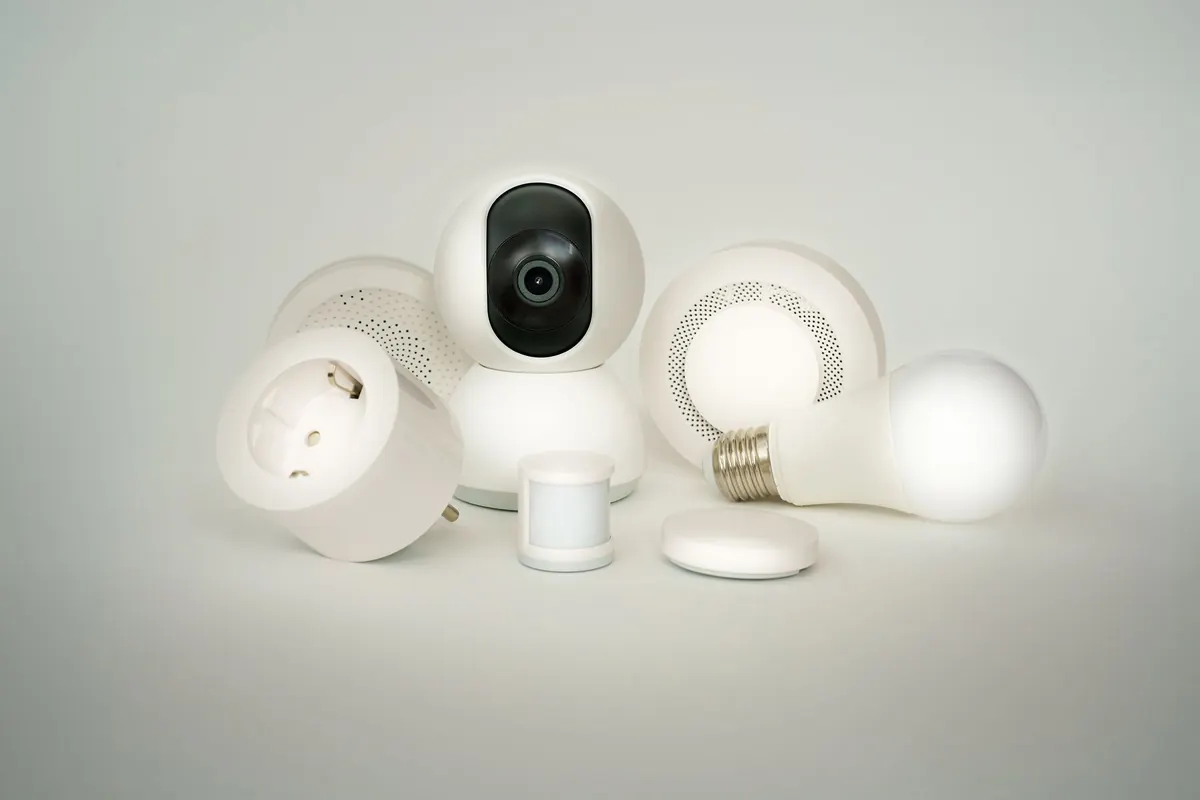
A guest network is not just for visitors. Cheap cameras, plugs, bulbs and TVs are the least secure devices in most homes, and they currently sit on the same network as your laptop and your backups.
Move them onto the guest SSID and switch on client isolation, which stops those devices from talking to each other or to your main network. Check this carefully: on some routers the guest network can still reach the local LAN, which defeats the purpose. Give it its own password, and put visiting phones there too.
Small settings worth two minutes each
While you are in the panel:
- Set wireless security to WPA2-AES at minimum, WPA3 if every device supports it. Avoid WPA/TKIP and open networks.
- Turn off UPnP unless a console or specific app genuinely needs it. It lets devices open ports by themselves, and malware is happy to use that.
- Disable services you do not use: USB sharing, FTP, telnet, remote access. Each is another way in.
- Check whether your ISP's remote management is enabled, and ask them before disabling it, since some connections rely on it.
A practical order of work
Follow this sequence and you will not lock yourself out halfway through.
- Update the firmware and enable automatic updates.
- Change the admin username and password, then log back in to confirm they work.
- Turn off remote management and WPS.
- Set filtering DNS addresses in the router, then test from two different devices.
- Create the guest network with isolation, and move the smart devices onto it.
- Adjust wireless security and disable the features you do not use.
- Store the new passwords somewhere safe and note the date.
Then leave it alone, with one exception: check the firmware every few months and replace the router when the updates stop. A router configured this way is not invincible, but it stops the bulk of opportunistic malware, cuts a good deal of advertising across every device in the house, and closes the doors that were standing open by default. That is a solid return for an hour of fiddling.
Photo: Field Engineer / Pexels